
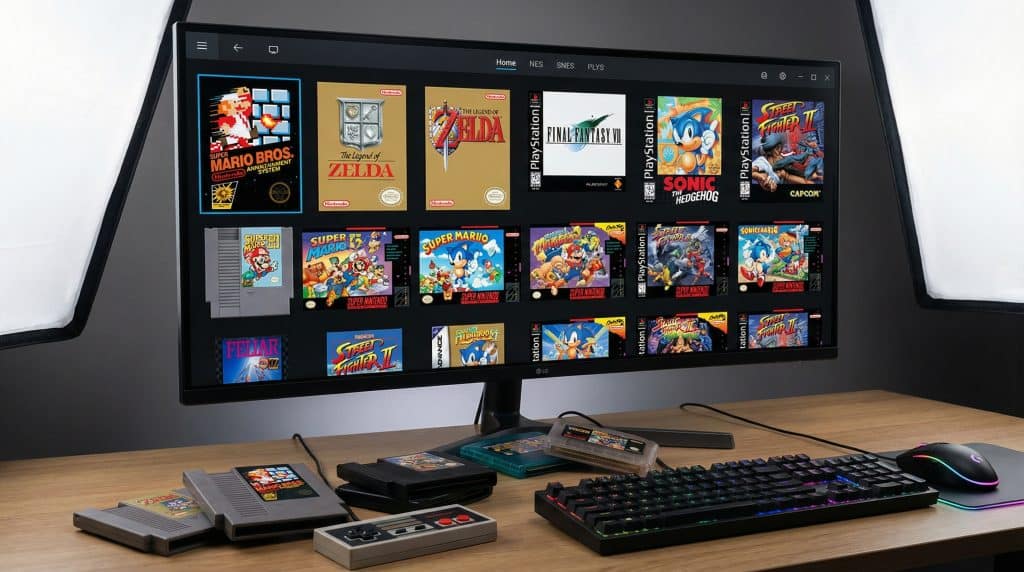
Your PC can absolutely be a time machine. Not a “flux capacitor” situation more like a “press Start and suddenly it’s 1997 and you can hear the Blockbuster carpet” situation.
And the setup? Honestly, it’s usually less time than it takes to pick a Netflix movie and then abandon it 12 minutes in.
People make retro emulation sound like you need a secret hacker hoodie and a second monitor full of scrolling code. You don’t. If your computer is from the last few years (yes, even that totally fine laptop you keep side eyeing), it can probably run most classic consoles without breaking a sweat.
Let me walk you through the real world version: what’s legal-ish, how to organize your files so you don’t drown in chaos, which emulators are worth your time, and how to get one game running first before you go full “500 ROM backlog I will definitely play.”
The Not Fun (But Important) Question: Is Emulation Legal?
Emulators themselves are generally legal. In the US, that Sony v. Connectix case (back in 2000) basically confirmed you’re allowed to make software that imitates a console.
The sticky part is the games and sometimes BIOS files.
- ROMs/ISOs (the game files) should come from hardware you own.
- BIOS files (the console firmware some emulators need) also need to come from consoles you own.
And yes, I know. Everyone has an opinion about what “should” be allowed here. I’m not your lawyer, and I’m definitely not your mom. I’m just telling you the cleanest, least stress way to do this without wandering into sketchy download land.
Safety tip I will shout from the rooftops
Real game files usually look like: .nes, .sfc, .z64, .iso, .chd, etc.
If you download a “ROM” and it shows up as an .exe, that’s not a game. That’s a tiny digital raccoon in a trench coat and it wants to live in your computer. Do not run it.
If you want a totally above board, zero file management option: Nintendo Switch Online, Steam retro collections, PlayStation Store classics, etc. exist for a reason. (Sometimes convenience is worth the money. Sometimes.)
Quick Vocabulary So You Don’t Feel Like the Internet Is Yelling Acronyms at You
You’ll see these words everywhere:
- Emulator: The program that pretends to be the console.
- ROM: Cartridge game file (NES/SNES/Genesis/Game Boy). Usually small.
- ISO / BIN+CUE: Disc game image (PS1/PS2/GameCube). Chunky files.
- BIOS: Firmware file some systems need to boot (usually PlayStation-era stuff).
- CHD: A compressed disc format that saves a ton of space and often works great.
That’s enough “Retro Nerd” to get you through the door.
Do This First: Organize Your Files (Future You Will Send You Flowers)
I know, I know. You want to start downloading cool stuff and clicking buttons. But if you don’t set up a sane folder structure now, your “Downloads” folder will become a cursed landfill and you’ll be hunting for “FinalFantasyVIIdisc2FINAL_final(2).bin” at 1:00 a.m.
Here’s a simple setup that won’t make you regret your life choices:
Emulation/
├── BIOS/
├── ROMs/
│   ├── nes/
│   ├── snes/
│   ├── psx/
│   ├── ps2/
│   └── gamecube/
└── Emulators/
That’s it. One home base. No chaos. No “where did I put that thing” scavenger hunts.
(Storage note: cartridge games are tiny. Disc games add up fast. CHD can save your hard drive from sobbing.)
“Can My PC Run This?” (Probably Yes)
Retro games are not here to humble your GPU.
- NES / SNES / Genesis / Game Boy: basically anything that can open a browser can run these.
- N64 / PS1 / Dreamcast: most mid range PCs from the last several years are fine.
- PS2 / GameCube: you’ll want a decent CPU; a dedicated GPU helps if you want higher resolutions.
- PS3 / Wii U: this is where things get spicy. Powerful CPU + modern GPU territory.
If your PC is under ~5 years old, you’re very likely good through GameCube/PS2 without drama. (Your wallet can unclench.)
The Emulators I’d Actually Use (a.k.a. The “Don’t Make Me Babysit Settings All Night” List)
You can fall down a rabbit hole of emulator opinions. People get… passionate. Like sports fans, but with more spreadsheets.
Here are solid picks:
- SNES: Snes9x
- Game Boy / GBC / GBA: mGBA
- GameCube / Wii: Dolphin (no BIOS needed, bless it)
- PS1: DuckStation (usually wants a BIOS)
- PS2: PCSX2 (modern versions are great)
- Dreamcast: Redream (very plug and play)
- PSP: PPSSPP (no BIOS and it can look shockingly good)
You don’t need to install 14 different things on day one. Choose what you want to play first, then expand.
BIOS Files: The Tiny Boss Battle Before the Real Game
This is the part that makes beginners want to throw their controller across the room.
Some systems run fine without BIOS. Others absolutely will not.
Usually no BIOS needed
NES, SNES, Genesis, N64, Game Boy, GameCube, Wii, PSP
Usually BIOS needed
- PS1 (you’ll see names like
scph1001.bin) - PS2
- Dreamcast (often
dcboot.bin/dcflash.bin)
Two quick “don’t skip this” notes:
- BIOS files don’t come with emulators (legally, they can’t).
- File names matter. Like, petty matter.
SCPH1001.BINmight not work if the emulator expectsscph1001.bin. Computers are dramatic.
Get BIOS right and you’ll magically fix half the “why is it a black screen???” problems.
Pick Your Setup Style (a.k.a. How Patient Are You Today?)
There are three main ways to do this, and none of them are morally superior. This is about your energy level.
1) “I want to play tonight” — RetroBat
Fastest, most hand-holdy, least fiddly. Download, unzip, toss your ROMs in folders, play.
2) “I want the best PS2/GameCube experience” — Standalone emulators
PCSX2 for PS2, Dolphin for GameCube/Wii, etc. More control, often better performance.
3) “I like one interface for everything” — RetroArch
Powerful and consistent once it’s set up… but it has a learning curve. Think “Swiss Army knife” energy: super useful, slightly pointy.
If you’re new and you just want a win? RetroBat or one standalone emulator is the easiest on-ramp.
My Favorite “Don’t Overcomplicate This” First Run Plan
Before you add 300 games and start curating box art like you’re opening a museum, test one game first.
Pick something simple—SNES is perfect because it’s low drama.
Here’s your quick checklist:
- Does it launch?
- Do you have clean audio?
- Do your buttons work?
- Can you save state / load state?
- Can you quit back to the menu without having to Alt+F4 like a gremlin?
Get one win. Then repeat the process for the next system. This hobby is basically copy/paste once you understand the pattern.
Make It Look Good on a Modern Screen (Without Making It Weird)
Classic games were built for old TVs. Your modern TV connection options are… not that.
Three settings I always check:
- Aspect ratio: Most older systems should be 4:3. Black bars are normal. Stretching it to widescreen makes everyone look like they’re speed-running a funhouse mirror.
- Integer scaling: Keeps pixels crisp instead of smeary. If you like sharp pixel art, you want this.
- CRT shaders (optional): Scanlines and glow, like an old tube TV. Looks amazing… and can cost some performance. Totally a “vibes” choice.
Quick Fixes (Because Emulators Love a Tiny Tantrum)
If something goes wrong, try these before you spiral:
- Black screen: usually missing/wrong BIOS (or wrong filename/location).
- Crackly audio: increase audio buffer (try 1024-2048) or switch audio output backend.
- Controller not working: test it in Windows first, try another USB port, re-pair Bluetooth.
- Settings not saving: some programs need you to manually save config/overrides. (Yes, it’s annoying. Yes, I have also screamed.)
- Input lag: often your display—turn on Game Mode. Some emulators have “run ahead,” but it can hit performance.
If you fix filenames, place BIOS correctly, and actually save settings, you’ll feel like a wizard.
Okay. Go Play Something.
You don’t need a perfect library, custom themes, or 10,000 box arts downloaded from the moon. You need one game booting cleanly.
So pick a childhood favorite from classic PS2 titles to try, set up one emulator, test it, and let yourself have the moment.
Go press Start on your nostalgia—and make that first game launch like it owes you money.