
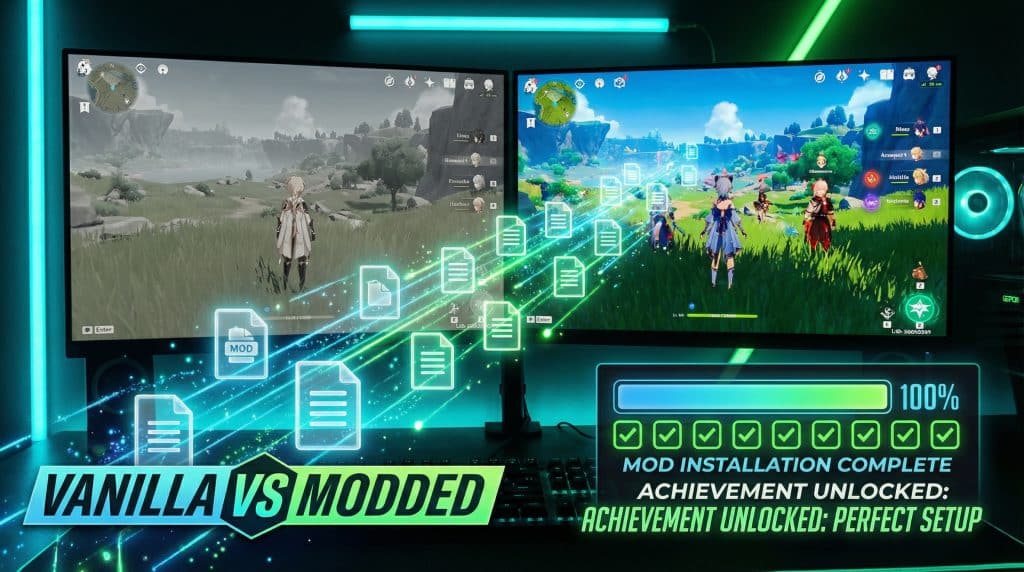
Mods are supposed to make your game better. You know… prettier trees, smarter NPCs, fewer “why is this menu from 2009?” vibes. Not turn your PC into a dramatic little crash machine that faceplants before you even see the main menu.
After way too many late night “surely THIS will fix it” sessions (spoiler: it did not), I’ve realized most mod install disasters boil down to three extremely unsexy problems:
- Version mismatches (your game is one thing, the mod is another, and they refuse to be friends)
- Missing dependencies (a mod quietly needs three other mods to exist, like a needy houseplant)
- Conflicts/load order issues (two mods fighting in the parking lot over who gets the last word)
Fix those three, and suddenly you’re living in the timeline where you actually play the game instead of reading crash logs like they’re poetry.
The Only Modding Vocabulary You Actually Need
Half of modding is people saying things like “drop it in your root folder” with the confidence of someone who’s never been emotionally damaged by Windows file paths.
Here’s the mini dictionary I wish someone had shoved into my hands:
- Install / root folder: The main game folder where the
.exelives (oftenSteam\steamapps\common). - User folder: The separate “Documents/AppData” area where saves and configs usually live (and sometimes mods too, because chaos).
- Mod loader: The thing that actually lets mods run. Without it, you can place files perfectly and still get… nothing.
- Dependency: A required mod/library another mod needs, like “this won’t work unless you also install X.”
- Load order / overwrite priority: The game’s way of deciding which mod “wins” when two mods change the same thing.
That’s it. No pop quiz. (But there will be consequences if you ignore dependencies. Ask me how I know.)
Two Safety Rules (Because I Like You)
I know, I know. You came here for the fun part. But if you skip these, you might end up staring at a corrupted save file like it personally betrayed you.
1) Don’t mod multiplayer games unless you enjoy consequences.
A lot of online games scan for modified files. “It was just a UI tweak” does not always save you from a ban. If you play online, either keep a separate clean install or keep mods for single player only. (Your future self does not want to write an appeal email that starts with “So about those files…”)
2) Protect your saves like they’re your only house key.
Mods that add items/quests/characters often bake themselves into your save. Remove them later and your save might implode, or get weird in a “why is this NPC naked?” kind of way. Keep one clean pre-modding save you never touch, and use a test save for experimenting.
Okay. Boring part done. Go forth and do crimes (responsibly).
The #1 Villain: Version Mismatches
If modding had a final boss, it would be version mismatches. Silent. Common. Weirdly good at ruining your evening.
Before you download a single shiny mod, check:
- Your exact game version (main menu/launcher usually shows it)
- Your platform (Steam, Epic, GOG, Game Pass—yes, it matters)
- Whether you’re on a special edition or have specific DLC installed
A mod built for 1.5 can absolutely misbehave on 1.6. Not because the author hates you—because updates change scripts and files and reality itself.
Where Are Your Mods Supposed to Go? (A Brief Game of Hide and Seek)
This is the part where people confidently install things into the wrong folder and then declare modding “broken.” (I have been people.)
Here’s how I find the right place without spiraling:
- Steam: Right click the game → Properties → Installed Files → Browse. That’s usually the install folder.
- Epic: Often in
C:\Program Files\Epic Games\[GameName]. - GOG: Often in
C:\GOG Games\[GameName]. - Game Pass: Can be in locked down folders (WindowsApps). Some titles have built in mod support via the Xbox app—if not, it can get annoying fast.
Then do my three “where did my mod go?” checks:
- Check the in game menu: Some games have a Mods menu and tell you the folder.
- Is it Workshop first? If Steam Workshop is the main method, you might not be manually placing anything.
- Check Documents: Look in
Documents/My Gamesfor a folder with the game’s name.
And yes, back up your game folder (or at least your saves/configs) before you start. It’s the difference between “oops” and “re-downloading 80GB while questioning your life.”
Mod Loaders: The “Right Key” Situation
Sometimes you did everything “right” and the mod still doesn’t show up because you’re missing the mod loader—the little middleman that actually makes mods load.
Common examples:
- Minecraft: Forge vs Fabric vs NeoForge. Mods usually pick one and refuse to work with the others. (They are loyal. Petty, but loyal.)
- Bethesda games: Often need script extenders like SKSE, plus a manager and plugin sorting.
- Unity games: Commonly use BepInEx style setups where plugins live in a specific folder.
Here’s the “Modding Trinity” that must align, or you’re doomed:
Game version + loader version + mod version.
If one of those is off, it’s like trying to put a USB in upside down. Except somehow worse, because you’ll do it three times and still swear it should fit.
Where I Download Mods (Without Inviting Malware to Dinner)
Downloading mods is like ordering takeout: you can click the first sketchy link you see when deciding where to find SM64, but you might spend the night regretting it.
I stick with the usual suspects:
- Nexus Mods for tons of PC games (good tracking, lots of documentation)
- Steam Workshop for easy installs (less control, but convenient)
- CurseForge for Minecraft ecosystems
- Mod DB for older titles and total conversions
Before you hit download, do the quick reality check:
- Does it match your game version?
- Does it require a loader or dependencies?
- When was it last updated? (A mod untouched for five years might still work… or it might explode instantly. Fun gamble!)
Also: don’t install three different lighting overhauls at once unless you enjoy chaos. Pick one approach per “problem.” Your game is not a buffet.
How I Install Mods Without Playing Digital Jenga
This is where excitement hits and people start dragging files around like raccoons in a pantry. Let’s be calm.
Option A: Use a mod manager
If your game supports it, a manager saves your sanity. They usually help with enabling/disabling mods, spotting conflicts, and managing load order. Some even let you run profiles so you can have a “testing” setup and a “real playthrough” setup.
Option B: Manual install
Manual installs can work fine, but you have to actually open the archive first and look inside. Mods are not consistent. Some unzip into a neat folder. Others vomit loose files everywhere. If you drag and drop without checking, you’ll eventually end up with a folder structure that looks like a junk drawer.
If the game has an in game “Enable Mods” toggle/menu, make sure you actually… enable them. An installed mod that isn’t enabled is basically a decorative throw pillow.
Load Order: Who Gets the Last Word
Load order is just the rule of: whoever loads last wins. Which is great until two mods both want to “win,” and then your game starts speaking in tongues.
Different games handle this differently, but the principle is the same:
- Plugins (common in Bethesda games): Later plugins override earlier ones.
- Overwrite priority (textures/UI files): One mod’s files replace another’s.
- Minecraft style dependency ecosystems: Version/dependency alignment is often more important than manual sorting.
My general rule of thumb: frameworks/fixes first, big content in the middle, tweaks last. And if your ecosystem has an auto sort tool (like LOOT for Bethesda), use it. Let the robot do the boring work.
Test Like a Sane Person (Not on Your Precious Save)
Do not debut a fresh mod list on your “this is the one” save file. That’s like trying new hair dye five minutes before family photos.
Here’s my quick test routine:
- Launch the game and make sure you can reach the main menu.
- If it crashes before the menu, think: loader/version/dependency/conflict.
- If you reach the menu, load a test save and poke around: open inventory, open settings, walk through a couple areas.
- Watch for missing textures (purple/black weirdness), UI overlapping, or obvious broken behavior.
And please—change one thing at a time when troubleshooting Windows build errors. If you “fix” five things at once and it suddenly works, congratulations: you learned nothing. (This is science now.)
Common Failures (AKA: The Greatest Hits)
When mods break, they’re actually pretty predictable. Annoying, but predictable.
- Crash before main menu: Wrong game version, wrong loader, missing dependency, or a hard conflict. Disable half your mods, test, then narrow down until you find the troublemaker.
- Mods not showing up: Installed to the wrong folder, not enabled, or you’re launching the wrong profile/instance.
- Weird visuals/UI glitches: Overwrite priority/conflicts. Two mods are editing the same files; you may need a compatibility patch.
- “Not a game directory” / permission errors: Your manager is pointed at the wrong folder, or Windows is being protective. Installing games under
Program Filescan cause extra permission drama. - Crash logs exist for a reason: Most loaders generate logs that point to the likely culprit. Search the key error line—someone else has already screamed about it on the internet, I promise.
How to Keep Your Setup Stable (So You Don’t Cry)
Once you get a stable mod list, treat it like a tiny delicate ecosystem. Don’t stomp through it in muddy boots.
- Back up your working setup (mods folder / profile / save). Do it before updates.
- Be cautious with game updates. A big patch can break a bunch of mods at once. If you can, delay auto updates until core mods confirm compatibility.
- Add mods slowly. Test new mods on a throwaway save first.
- Don’t yank out content heavy mods mid save unless you’re okay with that save becoming haunted.
I am not saying “never experiment.” I’m saying: experiment like a person who enjoys having free time.
Go Install One Mod (And Make Your Game Behave)
If you take nothing else from my little modding sermon, take this: when something breaks, it’s almost always version, dependencies, or conflicts/load order. Not bad luck. Not your computer being cursed. Just those three gremlins.
Pick one mod. Check your versions. Install the loader it needs. Grab the dependencies. Test it on a disposable save. Then add the next one.
And if your game does crash? Congrats—you’re officially modding. Now you just get to do it with a plan instead of vibes.