
Your favorite mobile game. A tiny screen, cramped controls, and a battery that taps out right when things get good.
Sound familiar? If you have ever thought, “I wish I could play this on my PC with a proper keyboard and a full monitor,” you are not alone, and that is exactly what the best emulators for Android are built to fix.
I have spent years testing every kind of gaming tool you can imagine, and emulators have quietly become one of the most powerful upgrades a gamer can make.
In this blog post, I am breaking down top-rated Android emulators, no fluff, no sponsored rankings, just honest picks from someone who has actually used them.
What is an Android Emulator and Why Do Gamers Love Them?
An Android emulator is software that recreates the Android operating system on your Windows PC or Mac, letting you run mobile apps and games directly on your desktop.
Think of it like giving your computer an Android personality, complete with Google Play Store access, touch controls converted to keyboard inputs, and your full game library on a much bigger screen with far better control precision.
The mobile gaming industry has exploded in recent years, and millions of players are now making the switch to emulator-based gaming every single year.
Competitive gamers chase low input lag and high FPS. Casual players want a simple, crash-free setup.
Developers need accurate Android version simulation and ADB support for proper app testing. Whatever your reason for being here, there is an Android emulator built for exactly that.
Best Emulators for Android
After hours of hands-on testing and cross-checking community feedback, here are my top picks, covering every use case from hardcore competitive gaming to casual app browsing.
1. BlueStacks 5.22
BlueStacks has held the top spot for over a decade, and the 5.22 update in early 2026 makes a strong case for keeping it there.
It now runs an Android 13 beta image, supports up to 240 FPS with AI-based resource management, and idles at around 740MB RAM.
Action titles like PUBG Mobile hit 120 FPS at 1080p with Hyper-V disabled. The BlueStacks Prime subscription launched in early 2026, removing ads and unlocking unique rewards.
Best for: all-around gamers who want the widest game library and a feature-packed experience.
2. LDPlayer 9
LDPlayer 9 is the pick for anyone who takes FPS gaming seriously. In benchmark testing on a Ryzen 5 system, it consistently delivered an AnTuTu score above 1,850,000 and maintained input lag as low as 8-12ms, the lowest measured across all major emulators in 2026.
It runs Android 9, 10, and 11, delivers stable 60 FPS even on budget hardware, and loads 25% faster than non-Hyper-V setups.
Best for: competitive FPS players and anyone running a mid-range or older PC.
3. MuMu Player 12
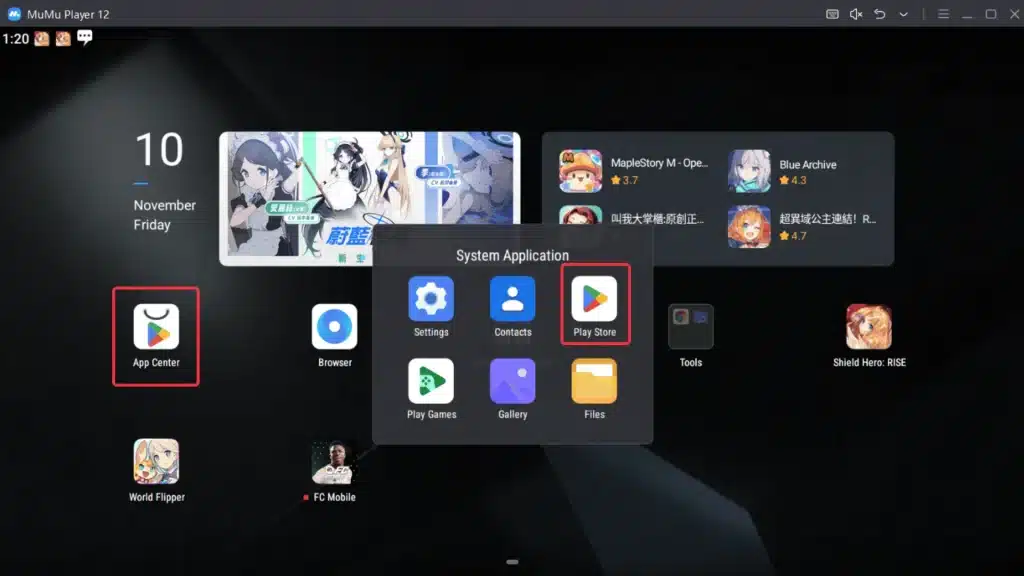
MuMu Player 12 by NetEase quietly became one of the most impressive emulators of 2026.
Its frame interpolation technology genuinely pushes games to 240 FPS beyond their native cap, and I tested this firsthand with Free Fire; the difference in smoothness was immediately noticeable.
It idles at under 400MB RAM, uses Android 12 by default, and runs a completely ad-free interface with no pop-ups or promoted games in the dock.
Best for: gamers who hate ads and want smooth performance on mid-range hardware.
4. GameLoop
GameLoop is the official emulator from Tencent, and that official status makes a real difference when you are playing PUBG Mobile, Call of Duty Mobile, or Arena of Valor.
Its AOW engine bypasses the need for VT support, which is a major advantage on older machines, and its anti-cheat integration means you are far less likely to get flagged during gameplay. Millions of players use it monthly.
Best for: players who primarily stick to Tencent-published titles and want optimized, official support.
5. NoxPlayer 7
NoxPlayer bundles five Android kernels in a single installer, versions 4.4, 5.1, 7.1, 9, and 12, letting you switch between them with a single click.
That flexibility makes it genuinely useful for QA testing and for gamers who run multiple accounts across strategy games.
It also performs reliably on 2GB RAM machines where other emulators struggle.
One thing worth knowing before you install.
NoxPlayer has a documented history of bundling software, which has raised concerns about community trust. Download only from the official site and carefully review every screen during setup.
Best for: gamers juggling multiple accounts and users who need flexibility across different Android OS versions.
6. Genymotion
Genymotion is a professional-grade tool available in Desktop, SaaS, and Device Image modes.
Android 15 preview images were released on its SaaS platform in April 2025, and its desktop version runs Android 14 via VirtualBox on Windows, macOS, and Linux.
ADB over TCP is available by default, making it ideal for CI/CD pipelines and enterprise QA workflows.
Best for: app developers and enterprise testing teams who need accuracy over gaming performance.
7. MEmu Play
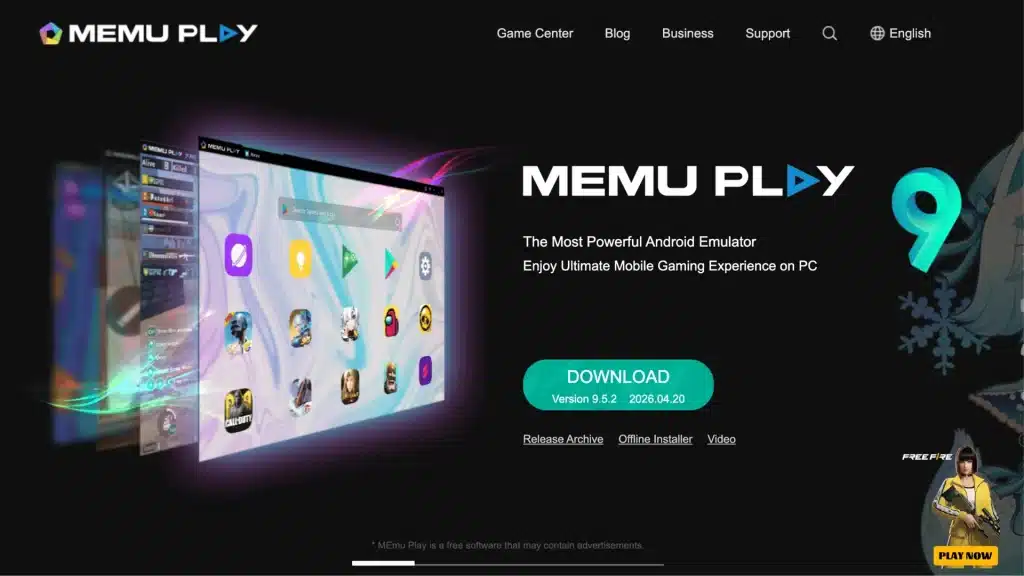
MEmu Play supports up to 240 FPS without overloading system resources and offers both full-screen and smartphone-screen display modes.
It includes APK drag-and-drop installation, solid keyboard mapping, and engine tweaks for performance tuning.
The UI feels slightly cluttered compared to MuMu, and FPS trails LDPlayer by about 10%, but the balance of features makes it a solid general-purpose choice.
Best for: users who want a reliable emulator for both gaming and casual app use.
8. MSI App Player
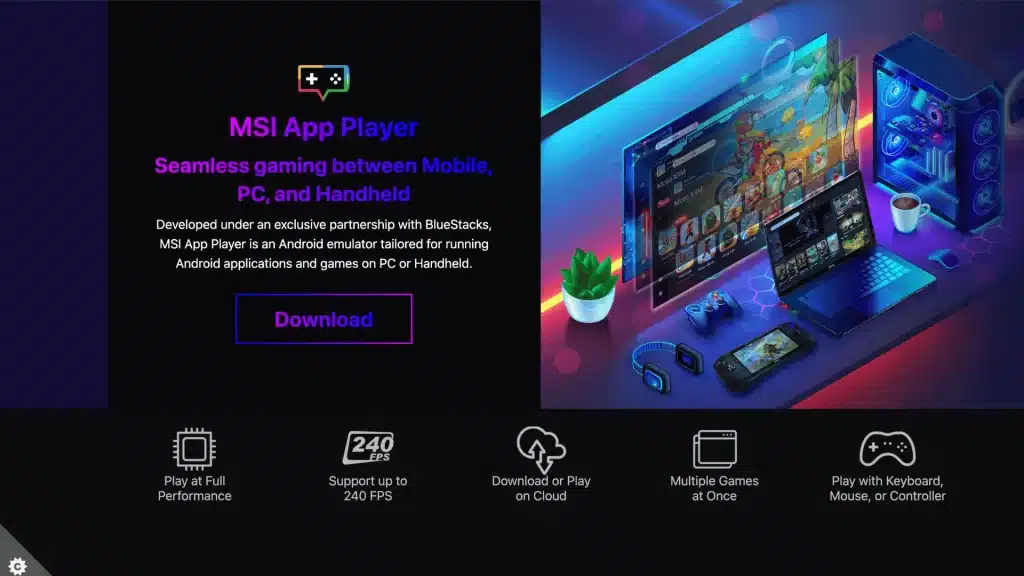
MSI App Player is built on BlueStacks technology but optimized specifically for MSI hardware, leveraging MSI’s GPU and CPU synergy to deliver up to 240 FPS with lower latency than standard BlueStacks on compatible rigs.
If you have an MSI gaming laptop or desktop, this emulator is a no-brainer.
Best for: MSI hardware owners who want BlueStacks-level features with native hardware optimization.
9. SmartGaGa

SmartGaGa uses advanced virtualization technology specifically tuned for graphically demanding games, and it handles titles like Genshin Impact and Mobile Legends consistently well, even on mid-range hardware.
It supports Google Play, keyboard mapping, and multi-instance mode. It is less well-known than BlueStacks or LDPlayer, but the gaming community has given it strong marks for stability during long sessions.
Best for: gamers who primarily play graphic-heavy titles and want a stable, lesser-known alternative to the big names.
10. KoPlayer

KoPlayer keeps things simple: free, lightweight, and solid for casual gaming. It supports keyboard mapping, APK sideloading, and a basic multi-instance feature.
It lacks the advanced performance tuning of BlueStacks or LDPlayer, but for users who just want to run a mobile game on a PC without any complexity, it gets the job done cleanly.
Best for: casual users who want a no-fuss, completely free Android emulator with minimal setup.
If you enjoy playing classic games on emulated platforms, you might also want to check out some retro gaming titles that pair perfectly with these emulators.
What Reddit Users Actually Say About Android Emulators
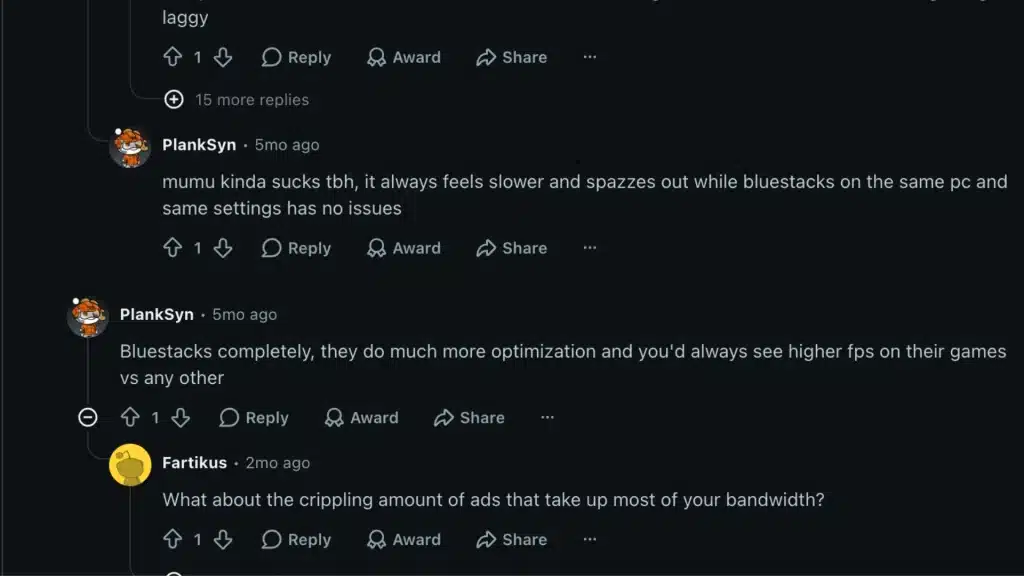
Spend time browsing Android emulator threadson Reddit, and a consistent pattern becomes clear. BlueStacks is still the default pick for most users because of its wide compatibility and ease of use.
LDPlayer gets frequent mentions from competitive players, especially for its smoother controls and lower input lag in fast-paced games.
MuMu Player is increasingly talked about, with users noting its stability and cleaner experience compared to older options.
NoxPlayer often draws criticism due to bundled software and trust concerns during installation. Meanwhile, GameLoop is rarely recommended outside specific use cases but earns solid feedback for running Tencent titles like PUBG Mobile efficiently.
If you are still on the fence about which one to install, this breakdown of the most trusted Android emulator options covers community reputation and reliability in more detail.
Overall, Reddit users agree that performance varies by game and system setup.
Tips to Get Better Performance from Your Android Emulator
Getting the most out of your emulator is often about setup as much as the emulator itself. Here are six things I always check before a long gaming session:
- Enable Virtualization in BIOS: Intel VT-x or AMD-V must be active for hardware acceleration; without it, most emulators fall back to software rendering, and performance tanks dramatically
- Allocate Enough RAM and CPU Cores: Assign at least 4GB RAM and 2-4 CPU cores manually inside your emulator settings for a noticeably smoother experience during demanding titles
- Set Your Discrete GPU as Default: Always force your emulator to use your dedicated graphics card instead of integrated graphics to avoid frame drops and rendering lag in heavy games
- Keep Drivers and Emulator Updated: Outdated GPU drivers are among the most common causes of crashes and stutters inside emulators, and most 2026 updates include meaningful performance improvements
- Close Background Processes Before Launching: Browsers, streaming apps, and system utilities all compete for RAM and CPU. Shutting them down before starting your emulator makes a real difference
- Download Only from Official Sources: Stick to the developer’s official website or trusted platforms, since third-party mirrors often bundle adware or outdated versions that introduce security risks
Conclusion
Finding the right fit among the best Android emulators really comes down to knowing what you actually need.
BlueStacks 5.22 is my top pick for most gamers because of its sheer versatility and active development. LDPlayer 9 is the call for competitive players who cannot afford input lag.
MuMu Player 12 earns a special mention for anyone who values a clean, ad-free setup. And if you are on a tight budget machine, MuMu Nebula or GameLoop will keep things running without demanding a hardware upgrade.
The emulator space has matured considerably; these tools are no longer just workarounds, they are full gaming platforms in their own right.
Pick one that matches your setup, spend ten minutes configuring it properly, and you will wonder why you ever squinted at a phone screen.
Drop your favorite emulator in the comments. I would love to hear what is working for you.
Frequently Asked Questions
Can I Use an Android Emulator on A Chromebook without Any Additional Software?
Yes, ARChon is designed specifically for Chromebook use, running as a Chrome extension that converts and launches APKs directly in the browser.
Some Chromebooks also natively support Android apps through the Google Play Store built into ChromeOS, which may be an even simpler option depending on your device model and ChromeOS version.
Will Using an Android Emulator Get My Game Account Banned?
It depends on the game. Most casual and RPG titles have no issue with emulator use. However, some games with aggressive anti-cheat systems, particularly certain battle royale titles, can detect emulator signatures and flag accounts.
BlueStacks and LDPlayer have built-in workarounds for this, but results vary. Always check your specific game’s terms of service before grinding ranked matches through an emulator.
Do Android emulators slow down your PC?
Android emulators can slow down a PC when system resources, such as RAM, CPU, or GPU, are limited. Proper configuration, enabling virtualization, and closing background apps can significantly improve performance and reduce lag.